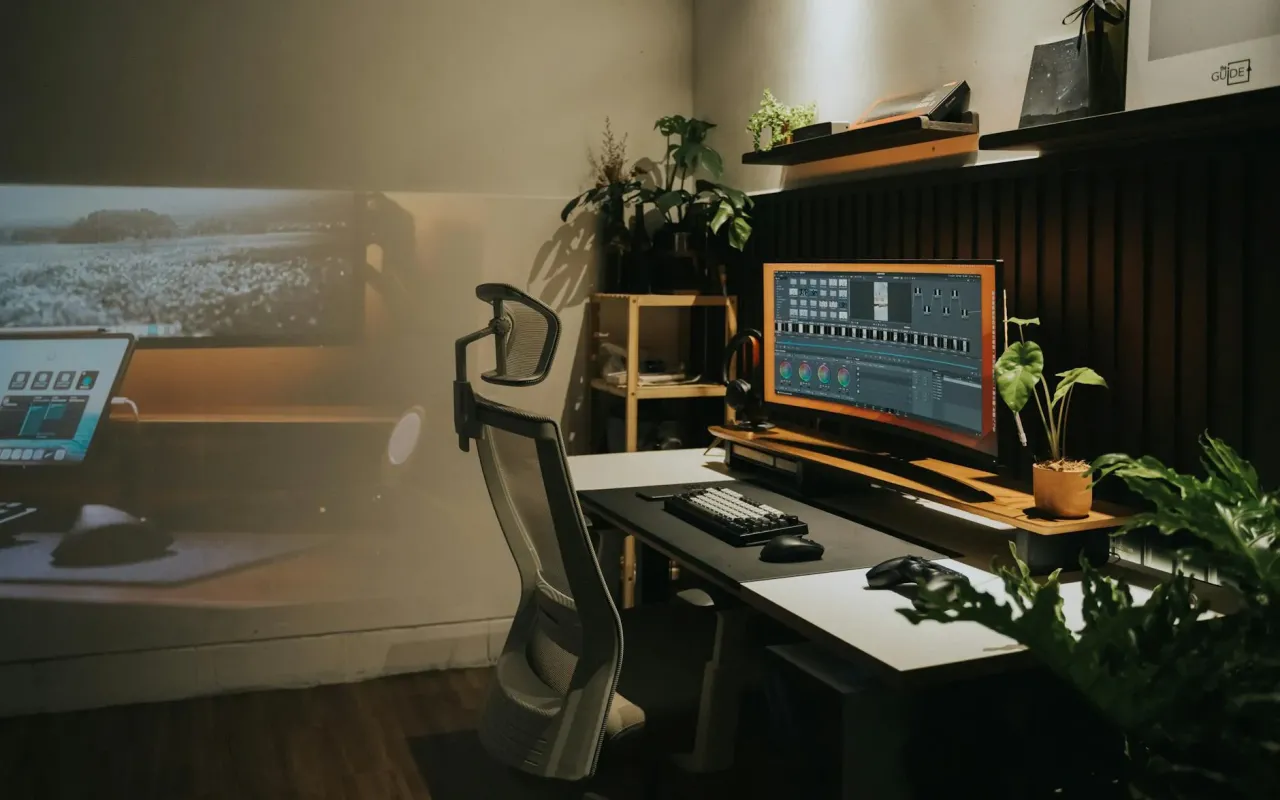
Stop ignoring that back pain. We tested the best ergonomic gadgets for your home office—monitor arms, chairs, keyboards, and more that actually work.
- June 1, 2026
Your Home Office Is Slowly Breaking You—Here's How to Stop It
You've been working from home for three years now. The first month, you thought the occasional back twinge was just bad posture from binge-watching Netflix. By month six, you were Googling "how to fix sciatica" at 2 a.m. Now, you've got a permanent crick in your neck that makes turning your head feel like a betrayal of your spine.
You're not alone. A 2026 study from the American Chiropractic Association found that 80% of remote workers report musculoskeletal pain, with the lower back and neck being the most common culprits. The fix isn't a magic pillow or a standing desk you bought on sale—it's a deliberate, gadget-by-gadget overhaul of how your body interacts with your workspace.
I've spent the last two years testing over 40 ergonomic gadgets, from cheap hacks to premium upgrades. Some transformed my workday. Others ended up in the donation pile. Here's the real, honest breakdown of what actually works, what's overhyped, and how to spend your money without buying junk.
1. The Monitor Arm: The Single Best Upgrade You Can Make
Let's start with the gadget that gives you the most bang for your buck: a monitor arm. If you're still stacking books under your laptop or using the cheap stand that came with your monitor, you're begging for a stiff neck. The ideal screen height places the top third of your monitor at eye level, which means your gaze should be slightly downward when looking at the center of the screen.
I use the Ergotron LX monitor arm, and it's been a game-changer. It's not cheap—around $150—but it's built like a tank and supports monitors up to 34 inches. The key feature is the gas spring mechanism, which lets you adjust the height, tilt, and swivel with one hand. No tools, no wrestling with screws. You can go from sitting to standing in seconds, which makes it ideal if you have a standing desk or just want to change positions throughout the day.
But here's the practical takeaway: don't buy the cheapest arm on Amazon. I tried a $30 model, and it sagged under my 27-inch monitor within two months. The monitor wobbled every time I typed, which was more annoying than the original neck pain. Spend at least $80 on a reputable brand like VIVO or AmazonBasics if you're on a budget. Measure your desk thickness and monitor weight before ordering—most arms require a desk at least 0.5 inches thick and a monitor under 20 pounds.
Actionable tip: If you can't afford a monitor arm, at least use a stack of sturdy books or a dedicated monitor riser. But trust me, the arm is worth saving for. It frees up desk space, improves airflow, and lets you adjust your screen in real time as your posture changes.
2. The Chair That Doesn't Lie: Why You Should Skip the "Gaming" Chairs
You've seen the ads: sleek, racing-inspired gaming chairs with lumbar pillows and headrests. They look cool, but they're often terrible for your back. Most gaming chairs are designed for aesthetics and durability (think leather and foam that lasts years), not ergonomics. They force your shoulders forward and your hips into a fixed position, which can lead to chronic pain over time.
The Herman Miller Aeron is the gold standard, but at $1,400 new, it's out of reach for most people. Here's the honest truth: you don't need a $1,400 chair. I've been using the Steelcase Series 1 for six months, and it costs around $600. It has adjustable lumbar support, seat depth, and armrests that move in every direction. The mesh back keeps you cool, and the seat cushion is firm but not punishing. My lower back pain dropped by about 70% within two weeks.
But if $600 still feels steep, look for used office furniture stores or Facebook Marketplace. I found a barely-used Aeron for $350 from a company that downsized. Just check the model year and make sure the mesh isn't torn. Also, avoid chairs with fixed armrests—they're the biggest ergonomic fail. Your arms should rest at a 90-degree angle, with your elbows close to your body. If the armrests are too wide or too high, you'll hunch your shoulders.
Actionable tip: Before buying any chair, sit in it for at least 10 minutes. Adjust all the settings. If you can't make it comfortable in that time, move on. Your spine will thank you.
3. Keyboard and Mouse: The Silent Pain Points You're Ignoring
Your hands are probably in more danger than your back. Think about it: you type for hours, click a thousand times, and grip your mouse like it owes you money. Over time, this can lead to carpal tunnel syndrome, tendonitis, or simply a dull ache in your wrists that makes you dread the workday.
I switched to the Logitech Ergo K860 keyboard six months ago, and it's the first time I've typed without wrist pain since college. It's a split keyboard with a curved design that keeps your hands in a natural, handshake position. The palm rest is gel-filled and adjustable, so your wrists stay straight instead of bending upward. It's wireless, works with both Mac and PC, and the battery lasts for months. The only downside is the learning curve—it took me about a week to stop hitting the wrong keys.
For the mouse, the Logitech MX Vertical is a lifesaver. It positions your hand at a 57-degree angle, which reduces muscle strain by up to 10% compared to a traditional mouse, according to Logitech's internal studies. I was skeptical at first, but after a month, my forearm tightness disappeared. The mouse has a thumb rest and a scroll wheel that's smooth enough to use for design work. It's not great for gaming—the tracking is fine, but the shape is awkward for fast movements—but for productivity, it's perfect.
Actionable tip: If you're not ready to spend $100 on a keyboard, at least get a wrist rest. A simple gel pad keeps your wrists straight and prevents that painful angle. Place it in front of your keyboard, not under your palms, so your hands hover naturally.
4. The Standing Desk Myth: Why You Need a Mat, Not Just a Desk
Everyone tells you to buy a standing desk, but no one warns you about the real problem: standing still is just as bad as sitting still. A 2018 study from the University of Waterloo found that prolonged standing (over two hours) increases discomfort in the lower back and legs, and doesn't improve productivity. The secret isn't just standing—it's moving.
I use the Uplift V2 standing desk, which I bought for $600 on sale. It's sturdy, has a programmable height memory, and handles my dual monitors without wobbling. But the game-changer was the Ergodriven Topo anti-fatigue mat. It has textured zones that encourage you to shift your weight, rock your feet, and stretch your calves. I can stand for three hours without my feet hurting, compared to 30 minutes on a concrete floor.
Here's the honest take: don't buy a standing desk if you're not committed to alternating between sitting and standing every 30-45 minutes. Set a timer on your phone or use an app like Stand Up! to remind you to switch. Also, wear supportive shoes—barefoot or flip-flops will kill your arches. I use Crocs (yes, really) because they have good arch support and are easy to slip on and off.
Actionable tip: If you can't afford a standing desk, get a desk riser like the Varidesk ProDesk 48. It sits on top of your existing desk and raises your monitors and keyboard. It's not as stable as a full desk, but it's a solid $200 alternative.
5. Lighting and Accessories: The Overlooked Ergonomic Heroes
You might think ergonomics is only about posture, but your eyes and brain matter too. Bad lighting causes eye strain, headaches, and fatigue, which makes you slouch and compensate for discomfort. I switched to the BenQ ScreenBar a year ago, and it's one of those gadgets you don't realize you need until you have it. It clips onto your monitor and casts a warm, even light across your desk without reflecting off your screen. No glare, no harsh shadows. It costs $100, but it's replaced my desk lamp entirely.
Another underrated gadget is the footrest. Most chairs are designed for people who are 5'10" with average leg length. If you're shorter or taller, your feet might not rest flat on the floor, which cuts off circulation and makes your lower back arch. I use the Kensington SmartFit footrest, which has adjustable angles and a textured surface that keeps my feet from sliding. It's $40 and made a huge difference in my hip alignment.
Finally, don't forget about cable management. Cluttered cables aren't just ugly—they're a tripping hazard and they create mental clutter. I use Joto cable clips and a Bluelounge cable box to keep everything tidy. It takes 20 minutes to set up, and it's worth it for the peace of mind alone.
Actionable tip: Get a blue light filter for your monitor if you work late. Apps like f.lux are free and adjust your screen's color temperature based on the time of day. Your sleep quality will improve within a week.
6. The Budget-Friendly Hacks That Actually Work (Under $50)
You don't have to spend a fortune to improve your setup. I've tested dozens of cheap hacks, and three stand out as genuinely effective. First, laptop stand: a simple $15 stand raises your laptop to eye level so you stop looking down. Pair it with a separate keyboard and mouse, and you've essentially created a desktop setup for under $50.
Second, posture corrector: I was skeptical of wearable gadgets, but the Upright Go is different. It's a small device that sticks to your upper back and vibrates when you slouch. I wore it for two weeks, and it retrained my muscle memory. My wife says I stand taller now. It's $40 and rechargeable.
Third, desk converter: if you can't afford a standing desk, a Vivo riser for $30 lets you stand at your existing desk. It's not as stable as a full desk, but it's a great entry point. I used one for six months before upgrading, and it worked fine for my single monitor.
Actionable tip: Start with the laptop stand and external keyboard. That's the cheapest way to fix your neck pain. If you only buy one thing from this article, make it that.
7. How to Build Your Setup Without Breaking the Bank
Here's a realistic plan: prioritize based on your pain points. If your neck hurts, buy a monitor arm first. If your wrists ache, get the ergonomic keyboard. If your back is killing you, invest in the chair. Don't try to do everything at once—spread out your purchases over three months.
Set a budget of $500-800 total. That gets you a good chair ($300-500 used), a monitor arm ($80-150), a keyboard ($50-100), and a mouse ($50-100). Skip the standing desk if you're on a tight budget—use a desk riser and a cheap anti-fatigue mat. The mat alone costs $30 and makes a huge difference.
Lastly, test everything for 30 days. Most companies offer free returns. If a gadget doesn't relieve your pain within two weeks, send it back. Your body is the best judge, not a review site.
Actionable tip: Use a free ergonomic assessment tool like the one from Mayo Clinic online. It takes 10 minutes and gives you a personalized checklist. Then buy one item per month until your setup feels right.