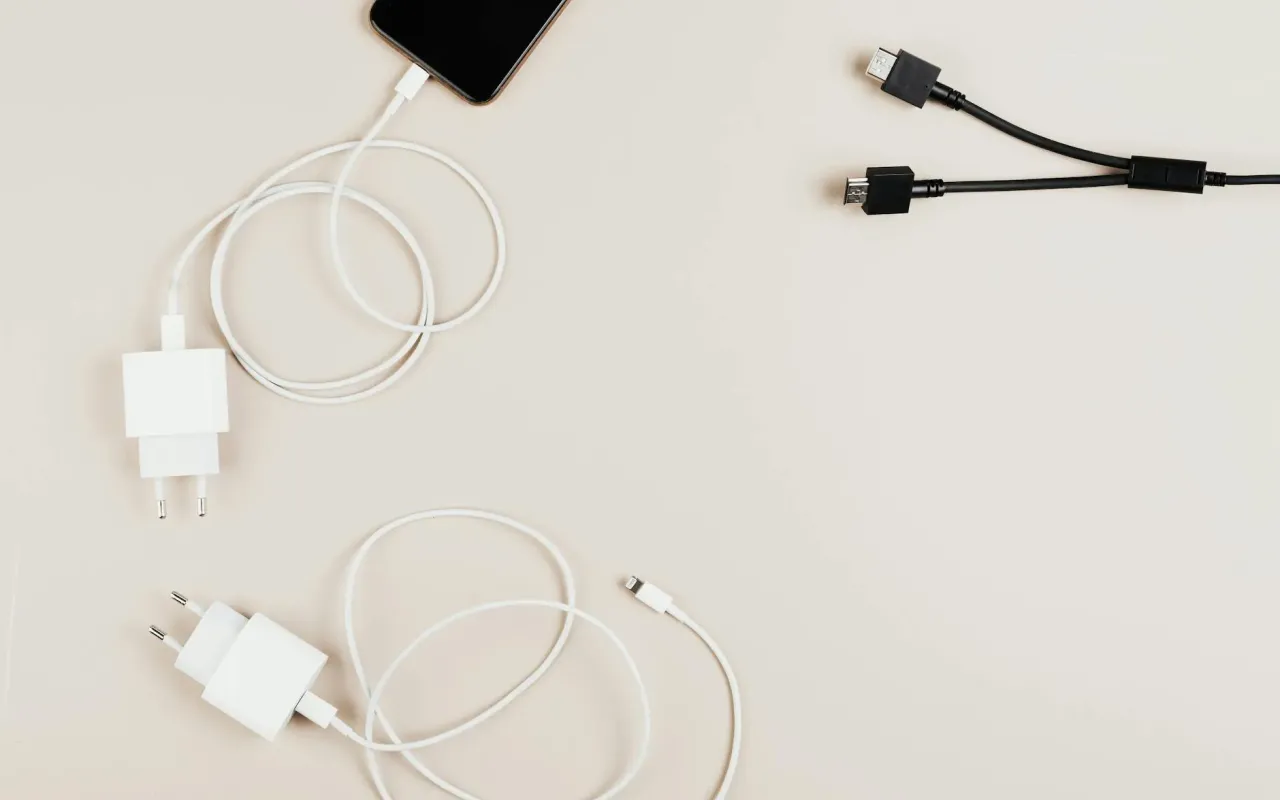
Your phone won't charge and you're panicking. Don't buy a new one yet. Follow this practical, no-nonsense guide to diagnose and fix the problem yourself.
- April 14, 2026
AceShowbiz - You plug in your phone before bed, expecting the familiar chime or battery icon to light up. Instead, there's nothing. You jiggle the cable, try a different outlet, and feel that first cold wave of panic. A dead phone in the morning means a disconnected day, and the thought of repair shop costs or a new phone bill is instantly overwhelming. Before you despair, know this: the vast majority of charging failures are caused by simple, fixable issues you can troubleshoot in your living room. Let's roll up our sleeves and systematically get your lifeline back online.
Start With the Basics: The Obvious Culprits
It sounds almost too simple, but you'd be shocked how often the fix is hiding in plain sight. Our first stop is a methodical check of the external components. This isn't about insulting your intelligence; it's about eliminating variables. A 2022 survey by a major electronics retailer found that nearly 40% of "charging issue" returns were resolved by simply using a different, certified charging cable.
Begin with your power source. Is the wall outlet actually working? Plug in a lamp or another device you know works to confirm. Try a different outlet entirely, as some can become loose or faulty over time. Next, examine your charging brick. If it's a USB adapter, is it firmly seated in the outlet? If you're using a computer or a low-power USB port on a power strip, that might be the issue—these often don't provide enough consistent power for a modern smartphone to charge effectively, especially if the battery is deeply depleted.
Now, the cable. Look for the telltale signs of wear: kinks, fraying near the ends, bite marks from pets, or a bent connector. Even minor internal wire damage can break the connection. The port on your phone is just as critical. Grab a bright flashlight and peer into the charging port. You're looking for a compacted layer of lint, dust, and pocket debris. This buildup can prevent the cable from seating fully, creating a weak connection that might show a "charging" symbol but delivers no actual power.
Actionable Takeaway: Before you do anything else, perform this trio check: test the outlet with another device, inspect your cable for damage, and clean your charging port with a dry, soft-bristled toothpick or a can of compressed air. Never use metal, which can damage the sensitive pins inside.
Diagnosing Your Gear: Cable, Adapter, and Port
If the basics didn't solve it, we need to play detective with your hardware. The goal is to isolate the failed component. Start by borrowing a friend's or family member's charging cable and wall adapter that you know are in good working order. It's best if they are from the same brand or are MFi (Made for iPhone) or USB-IF certified for Android. Use their known-good cable with your wall adapter, then your cable with their good adapter.
This simple swap test will immediately tell you where the fault lies. If your phone charges with their cable but not yours, your cable is dead. If it charges with their adapter but not yours, your wall brick has failed. These components are consumables; their average lifespan is 1-2 years with daily use. If your phone won't charge with any combination of known-good cables and adapters, the problem likely resides in the phone itself, either the port or the battery.
Let's talk about the port itself. Beyond physical debris, the port's internal connector can become loose or damaged from repeated, forceful plugging. If you see the cable wiggles excessively or only charges at a very specific, precarious angle, this is a strong indicator of port wear. For phones with wireless charging capability, this is your next diagnostic step. Place your phone on a Qi wireless charger. If it charges wirelessly but not via cable, you have definitive proof your USB port is the issue.
Actionable Takeaway: Conduct a systematic swap test. Use a friend's working charger to isolate whether the fault is your cable, adapter, or phone. If your phone supports it, try wireless charging. A successful wireless charge points directly to a faulty USB port.
When Software is the Sneaky Saboteur
We often forget that our phones are tiny computers, and sometimes a software glitch can mimic a hardware failure. Your phone's operating system manages power intake, and a stuck process or corrupted cache can cause it to misreport charging status or even refuse to accept a charge. Have you noticed your phone getting unusually hot before it stopped charging? That could be a runaway app draining power faster than the charger can supply it.
The simplest software fix is a force restart. This clears the device's working memory without deleting any data. For an iPhone, quickly press and release the Volume Up button, then the Volume Down button, then press and hold the Side button until you see the Apple logo. For most Android phones, hold the Power and Volume Down buttons together for about 10 seconds. If the phone was "frozen" in a low-power state, this can jolt it back to life.
If a restart doesn't work, consider if a recent app update or system update coincided with the problem. Boot your phone in Safe Mode. On Android, this temporarily disables all third-party apps. If your phone charges normally in Safe Mode, a recently downloaded app is the culprit. You'll need to uninstall apps one by one to find the offender. While less common on iPhones, a full backup and restore via a computer can resolve deeper software corruption.
When the Battery Itself is the Problem
Lithium-ion batteries, the heart of your phone, are consumable components with a finite lifespan. They degrade with every charge cycle, and after 2-3 years of typical use, their capacity and performance can drop significantly. This isn't a flaw; it's chemistry. A severely degraded battery can struggle to accept a charge at all. Your phone might show 1% for hours, shut down unexpectedly at 20%, or refuse to power on even when plugged in.
Check your battery's health. iPhones have a built-in "Battery Health" menu in Settings > Battery. Look for "Maximum Capacity." Below 80% means the battery has aged significantly and may cause performance issues. Many Android manufacturers include a similar diagnostic tool in their settings, or you can use a reputable app like AccuBattery, which tracks health over time by analyzing charge cycles.
A failing battery can also swell. This is a serious issue. Carefully inspect your phone. Does the screen appear to be lifting from the frame? Is the back glass or casing bulging? Does the phone no longer sit flat on a table? A swollen battery is a fire hazard and must be addressed immediately. Do not attempt to charge the phone further. Your only safe course of action is to take it to a professional repair shop for battery replacement.
Actionable Takeaway: Navigate to your phone's battery health settings. If maximum capacity is below 80%, a battery replacement will likely solve your charging and performance woes. Physically inspect your phone for any signs of a swollen battery—if you see bulging, stop using the device and seek professional repair immediately.
Advanced Checks and Professional Repair Options
If you've ruled out cables, adapters, software, and a dead battery, you're facing a more complex internal issue. This could be a damaged charging port, a faulty power management IC (Integrated Circuit) on the phone's logic board, or liquid damage. Water damage is particularly insidious; corrosion on the internal connectors can continue to spread long after the phone has dried out, eventually severing the connection needed for charging.
Before you resign yourself to a shop, there's one more home check for certain Android users: a hidden hardware test menu. Some brands like Samsung (dial *#0*#) have diagnostic codes that can test the USB port functionality directly. A quick web search for "[Your Phone Model] hardware test code" might reveal a way to run a self-check. For iPhones, Apple's proprietary diagnostics are generally not accessible to users.
When professional repair is the only path, be an informed consumer. Seek out a reputable, independent repair shop with good reviews that uses high-quality parts. Ask if they offer a warranty on both the part and their labor. For newer phones still under manufacturer warranty, contact Apple, Samsung, Google, etc., directly, but be aware that if they detect unauthorized repairs or liquid damage, your warranty may be voided. Get a clear, upfront estimate before any work begins.
Actionable Takeaway: Research online for hardware diagnostic codes specific to your phone model. When seeking a repair shop, prioritize those with certified technicians and warranties. Always get a written estimate, and understand that for complex board-level issues, a replacement phone might be more cost-effective.
Preventing Future Charging Headaches
An ounce of prevention is worth a pound of cure, especially with expensive electronics. Your charging habits have a direct impact on the longevity of your battery and port. First, be kind to your port. Always insert and remove the cable straight in and out, never at an angle. This prevents the internal pins from bending or breaking. Consider making wireless charging your primary method if your phone supports it; it eliminates port wear entirely.
Think about how you charge. While the myth of "overcharging" is largely debunked thanks to modern power management chips, extreme heat is a battery's worst enemy. Avoid charging your phone on your bed under a pillow, on a car dashboard in direct sun, or while running intensive games or GPS navigation. Heat accelerates chemical degradation inside the battery. Similarly, avoid letting your phone consistently drain to 0%. Lithium-ion batteries are happiest between 20% and 80% charge.
Invest in quality accessories. Buy cables and adapters from reputable brands that meet safety standards. A cheap, uncertified charger from a gas station can deliver unstable voltage that stresses your phone's internal components over time. Finally, make cleaning your charging port part of your monthly tech maintenance routine, just like deleting old photos. A quick blast of compressed air can save you a major hassle down the line.
Actionable Takeaway: Adopt wireless charging as your main method to preserve your USB port. Avoid charging in hot environments and try to keep your battery between 20% and 80%. Purchase certified charging accessories and clean your phone's port monthly with compressed air.
Knowing When to Call It and Move On
There comes a point where fixing an old phone is like pouring money into a car with a blown engine. You need to do a clear-eyed cost-benefit analysis. If your phone is four or more years old, lacks critical security updates, and has multiple issues (slow performance, cracked screen, poor battery life), a $100 repair for a charging port might not be the wisest investment.
Calculate the total cost of ownership for a repair versus an upgrade. A battery replacement for a recent model might cost $80-$100, while a port repair could be $60-$150. If your phone is worth $200 on the used market, a $150 repair doesn't make financial sense. Furthermore, consider the value of your time and frustration. A new phone will come with a fresh battery, a full warranty, and years of upcoming software support, something an older model simply cannot offer.
If you decide replacement is the path, you still have options beyond buying the latest flagship. Consider a certified refurbished model from the manufacturer, which is essentially like-new with a warranty. Look at previous-generation models, which often see significant price drops when a new version is released. Your broken phone might also have trade-in value, even in its non-charging state, to offset the cost of the new device.
Actionable Takeaway: If the repair cost exceeds 50% of your phone's current resale value, it's likely time to upgrade. Explore certified refurbished or previous-generation models for significant savings over the latest release, and check for trade-in programs to reduce the final cost.